Mice are advertised with a DPI figure, and the figures have climbed steadily into numbers nobody uses. Understanding what DPI describes makes it much easier to ignore, and to look at the things that actually affect how a mouse feels.
What DPI is
Dots per inch is how many steps the sensor reports for each inch the mouse moves. At 800 DPI, moving an inch sends 800 counts; at 16,000 DPI, the same inch sends 16,000.
It is a sensitivity setting. Higher is not more precise — it is faster, and past a certain point it becomes too fast to control. Most people work comfortably somewhere between 800 and 1,600 DPI, and competitive players often use less rather than more.
Why the headline numbers are so high
Because sensors are cheap and the number is easy to print. A sensor capable of 18,000 DPI costs the manufacturer little more than one capable of 3,000, and the figure sells.
There is one genuine case for very high DPI: a very high-resolution display, where a low setting means a great deal of physical movement to cross the screen. Even then the useful range rarely exceeds a few thousand.
What matters more
Adjustable DPI with a button
Genuinely useful. A button that drops sensitivity temporarily allows precise work — photo editing, fine selection — without changing the system setting.
Polling rate
How often the mouse reports its position, in hertz. 125 Hz is the old standard; 1,000 Hz is common now and feels smoother. Above that, differences are small.
Weight and shape
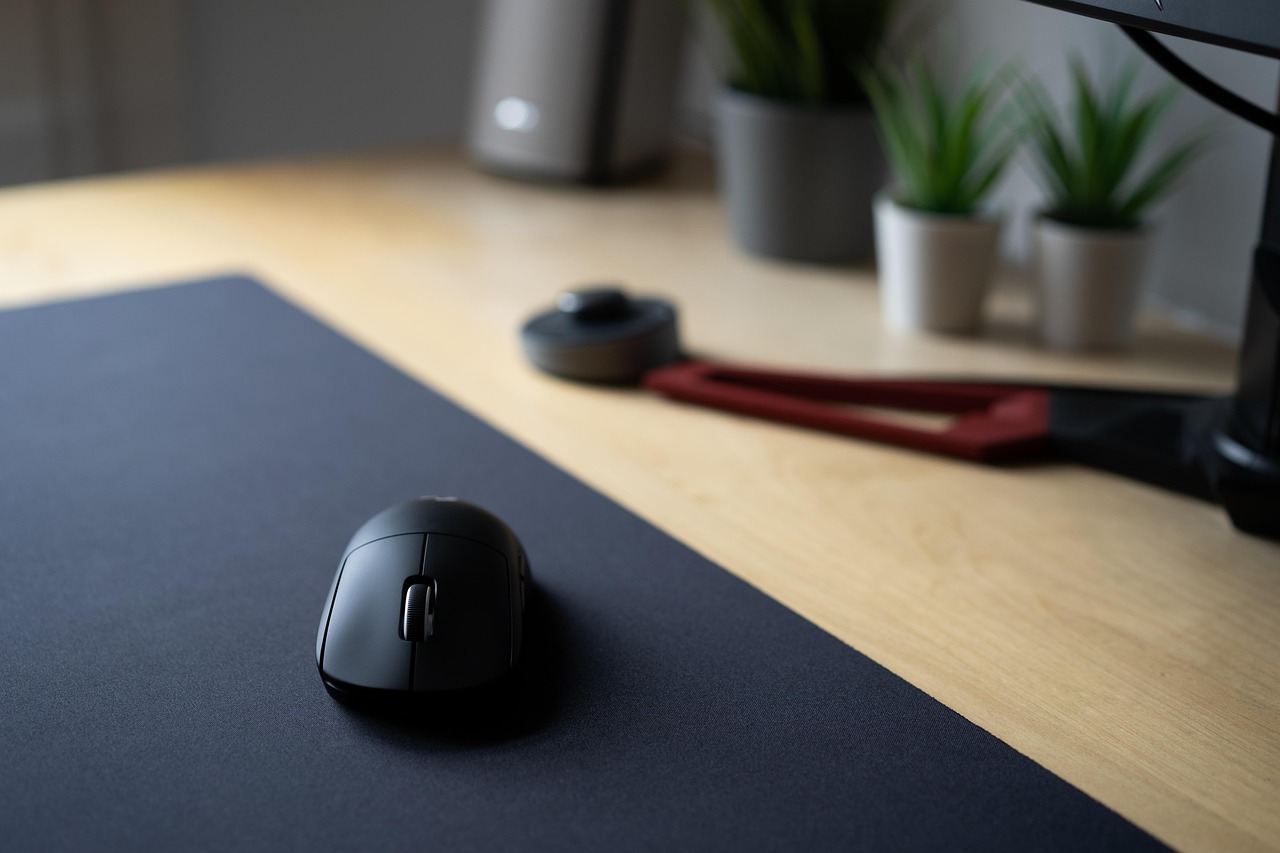
The two things you notice within a minute. A 60 g mouse and a 110 g one feel completely different over an afternoon, and shape has to match both hand size and grip style — palm, claw or fingertip. This is personal in a way no specification captures.
Button feel and placement
Side buttons that are easy to reach and hard to press by accident. A scroll wheel with defined steps rather than a vague one.
Turn off pointer acceleration
Operating systems often apply acceleration — moving the mouse faster moves the pointer further than the distance alone would suggest. It feels helpful and it prevents building muscle memory, because the same physical movement produces different results depending on speed.
Turning it off, then setting a DPI that lets you cross the screen with a comfortable movement, gives far more consistent control than any sensor specification.
Finding your setting
Start at 800 DPI with acceleration off. If crossing the screen takes an uncomfortably large sweep, step up to 1,200 and then 1,600. Stop as soon as it feels controllable — the lowest setting you can use comfortably is generally the most accurate.
Give any change a few days. A new sensitivity always feels wrong for the first hour.
Surface
Optical sensors struggle on glass, on high-gloss surfaces and on very dark uniform surfaces. A cloth mat solves it and also gives consistent friction, which matters more for control than the sensor does.
Wireless and battery
Modern wireless mice have no meaningful latency penalty for ordinary use. The practical question is battery: a replaceable AA lasts months and is swapped instantly; a rechargeable cell needs a cable occasionally.
Very light mice often use a single AAA or a small internal cell to keep weight down, which means shorter runtime. Check both the weight and the battery arrangement, since one usually explains the other.
Programmable buttons
Six programmable buttons is plenty for most workflows, and on-board memory means the assignments follow the mouse to another computer without installing software. That is a genuinely useful feature for anyone who works on more than one machine.
Choosing
- Ignore the maximum DPI figure.
- Look for adjustable DPI with a button.
- Check weight, and whether it suits your grip.
- Check the battery arrangement.
- Prefer on-board memory if you use several machines.
Weights, DPI ranges, connection types and battery arrangements are listed for every mouse in keyboards and mice.
Matching sensitivity across two machines
If you use the same mouse on a desktop and a laptop, set the DPI on the mouse rather than in each operating system. A mouse with on-board DPI settings behaves identically wherever it is plugged in, whereas system sensitivity settings do not transfer.
This is the practical reason on-board memory is worth having, more so than the programmable buttons it is usually sold on.
Wrist and grip comfort
Discomfort at a desk is more often about wrist angle than about the mouse itself. A flat mouse holds the forearm in a rotated position; a vertical or angled mouse reduces that rotation and many people find it noticeably more comfortable.
The adjustment takes several days, and accuracy is worse at first. That is normal and passes. If pain is present rather than discomfort, it is worth raising with a clinician rather than shopping — no mouse fixes an existing injury.
Two smaller adjustments often help more than a new mouse: bringing the mouse closer so the elbow stays near the body rather than reaching forward, and lowering the desk or raising the chair so the forearm is level. A tenkeyless keyboard helps the first of those directly, because removing the number pad moves the mouse several inches closer to the centre line. None of that costs anything, and it is worth trying before spending on a different shape.