An extended desk mat is one of the cheapest improvements to a workspace and one of the easiest to buy in the wrong size. The listing gives a width and a depth in inches, and the number people check is the width — which is almost never the constraint.
Measure usable depth, not total depth
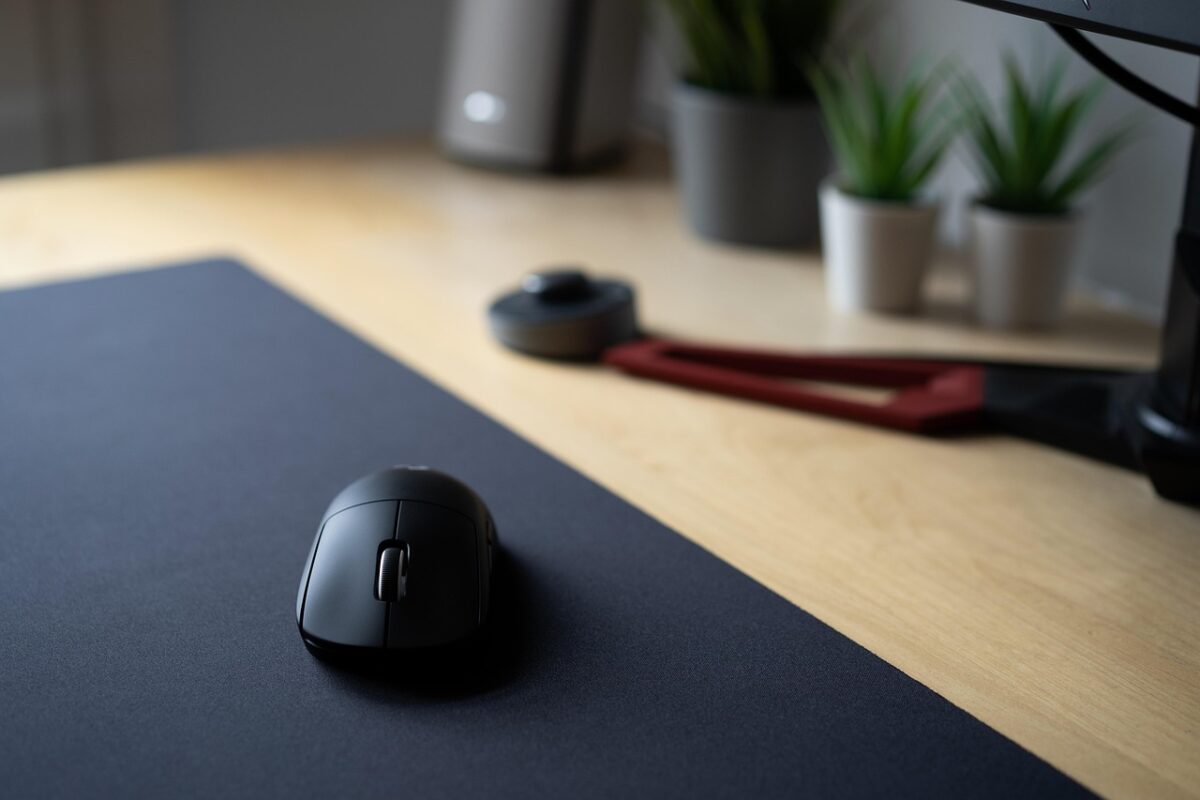
The figure that matters is the depth available in front of the monitor stand, not the depth of the desk. A desk that is twenty-four inches deep with a monitor foot occupying eight of them has sixteen inches of usable space, and a twelve-inch mat leaves four inches of desk in front — which is comfortable.
The same mat on an eighteen-inch desk with the same monitor foot leaves nothing, and the mat will overhang the front edge, which is uncomfortable against the forearms and quickly frays the edge.
Measure from the front edge to the front of the monitor base. That single number decides which mats are possible.
Common sizes
- Around 31 x 12 inches: the standard extended size. Fits a tenkeyless keyboard and a generous mouse area.
- Around 35 x 16 inches: full desk mat. Fits a full-size keyboard with room to spare and needs a genuinely deep desk.
- Around 12 x 10 inches: mouse-only. Useful where the keyboard sits on a tray.
Width is worth checking against the keyboard plus the mouse travel you actually use. A low-sensitivity mouse user needs far more width than someone at a high DPI.
Thickness
Most mats are two to four millimetres. Thicker mats are softer under the wrists and raise the keyboard slightly, which matters if your setup is already at the limit of comfortable forearm height.
Very thin mats roll up small and telegraph any unevenness in the desk underneath. Three millimetres is a reasonable default.
Stitched edges
The edge is where a mat fails. An unstitched cut edge frays within months, especially where a forearm rests. A stitched edge — a raised, sewn border — lasts far longer.
The trade-off is a small ridge under the mouse if you use the whole surface. Most people never reach the edge, so it is a good trade.
Surface and base
Cloth surfaces suit optical mice, are quiet, and are comfortable. Hard surfaces are faster and less forgiving. For general work, cloth is almost always the right answer.
The base should be natural or synthetic rubber with enough grip that the mat does not creep. A mat that slides during use is more irritating than no mat, and creep is usually a sign of a very thin or hard base.
Getting the creases out
Mats ship rolled and arrive with a curl. Unroll and lay it flat, ideally under books overnight, or roll it the opposite way loosely for an hour.
Do not iron a mat directly. If a manufacturer’s instructions permit heat, they will say so; most do not, and heat can delaminate the rubber base.
Cleaning
Most cloth mats can be hand washed in cool water with mild soap, brushed gently and air-dried flat. Do not put one in a washing machine or a tumble dryer unless the manufacturer says so — the agitation separates the cloth from the base.
Dry fully before use. A damp mat under a keyboard is not a good idea, and drying takes longer than people expect — often a full day.
Under-desk and cable interaction
A large mat covers the area where cables usually come up from behind, so route them before laying the mat rather than lifting it afterwards. A cable trapped under a mat produces a permanent ridge that shows.
Before you order
- Measure front edge to monitor base.
- Measure your keyboard width and add mouse travel.
- Choose a size that leaves a few inches of bare desk at the front.
- Prefer a stitched edge.
- Check the base material.
Dimensions in inches are written into the title of every mat in desk mats, and thickness and edge type are in the description.
Two mats instead of one
Where a desk is too shallow for an extended mat, two smaller mats often work better than one compromise. A narrow strip under the keyboard and a separate mouse pad let each sit where it is needed, and the gap between them is not noticeable in use.
It also means the mouse pad can be replaced on its own, which is useful because the mouse area wears out long before the keyboard area does.
Colour and sensor performance
Very dark, uniform surfaces and high-contrast printed patterns can both confuse an optical sensor, though modern sensors cope with most designs. If a pointer stutters on a new mat, test the same mouse on a plain surface before assuming the mouse is at fault.
Patterned mats with fine repeating detail are the most likely to cause trouble. A plain area of at least eight inches square in the mouse zone avoids the question entirely, which is why many patterned mats keep one corner clear.